Praxis Web
The fastest way to begin. Open the available workspace in a current browser on any supported computer.
Open Praxis Web →For an activated Praxis account
Open Praxis Web, sign in, connect your files, and create your first case. This guide uses the client that is publicly available today; Praxis Desktop and Praxis Mobile remain pending release validation.
Step 1 · about 1 minute
The fastest way to begin. Open the available workspace in a current browser on any supported computer.
Open Praxis Web →Praxis Desktop targets Windows, macOS, and Linux; Praxis Mobile targets iOS and Android. Neither client is part of this setup until its signed package, clean installation, and publication path have passed release validation.
View the release-status page →Use Praxis Web on a computer, phone, or tablet while native packages remain unavailable.
About 1 minute
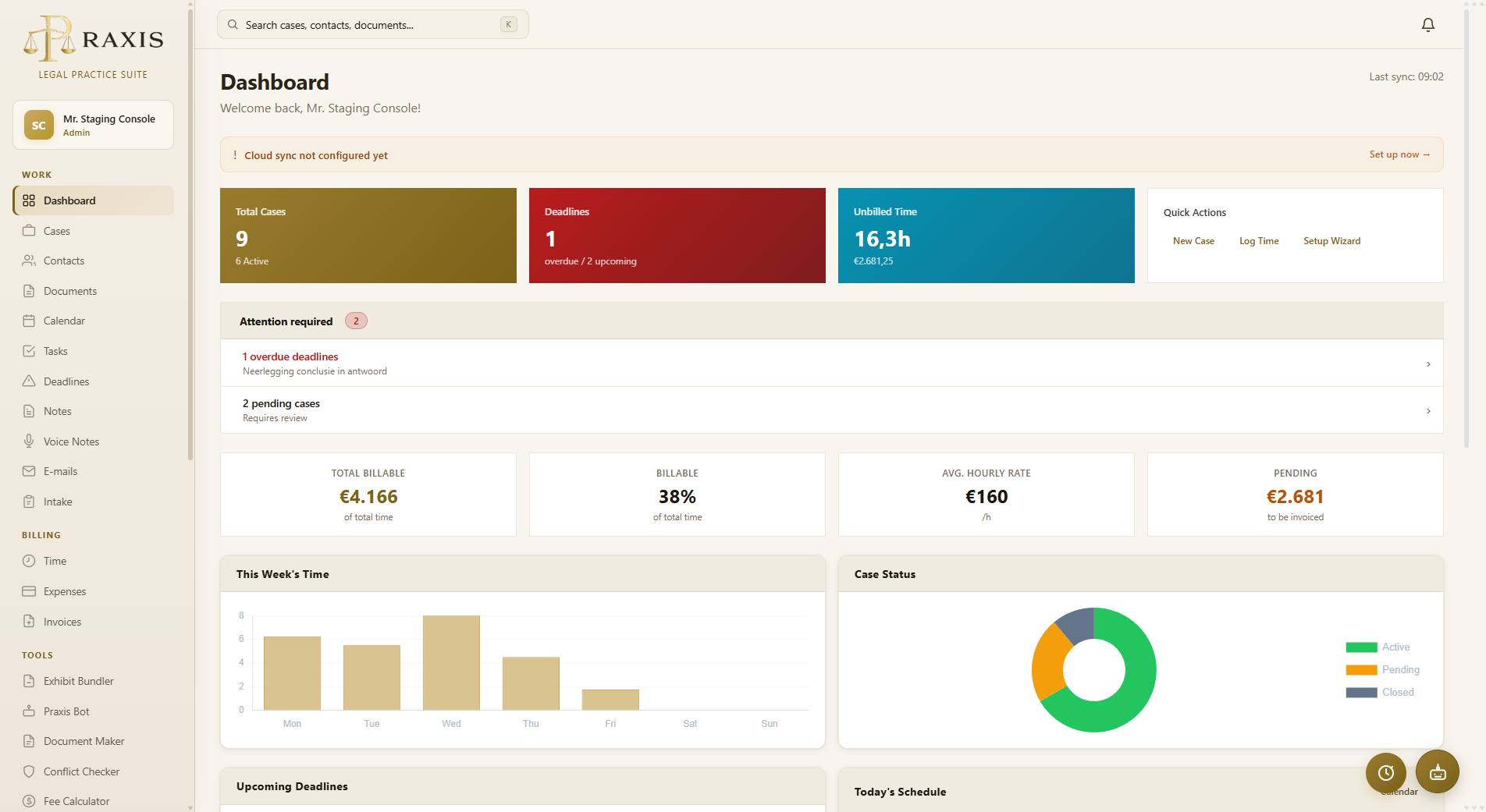
Open Praxis Web and sign in with your Praxis account. If this is your first login, complete the protected password and multi-factor prompts shown on screen. You will then arrive on the Praxis dashboard.
About 2 minutes
Open Cloud Storage or Settings → Integrations and connect the provider your firm uses. Follow the provider’s own consent screen; Praxis never asks you to paste a Microsoft or Google password.
About 2 minutes
Open Cases, select New Case, and add the minimum information you need now:
You can add the opposing party, deadlines, billing details, and AI-assisted intake after the case exists.
About 2 minutes
Open the case and upload one working document, then confirm it appears under Documents. Add a contact manually or use a supported Belgian enterprise number to retrieve public KBO/BCE details before you save.
About 2 minutes
Open Time, choose the new case, add a useful description, and start the timer—or enter completed work manually. Stop and save the timer, then confirm the entry appears against the correct case.
Setup complete
Continue with the guides for documents, billing, specialist tools, and Praxis Bot whenever you need them.
Draft, edit, and export legal documents from one coherent workflow.
Validate, order, stamp, and produce court-ready PDF bundles.
Use quick chat or open the live agent workspace for larger tasks.
Plan a clean import from an existing legal-practice system.